

Blog
How to Replace a Laptop Wireless Card
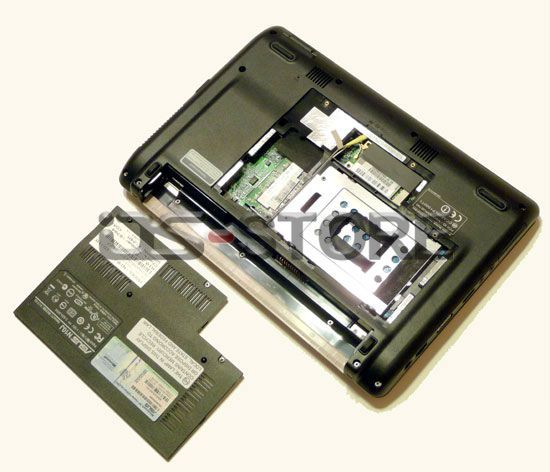
How to Replace a Laptop Wireless Card? There are only five steps for you.
1. Locate the wireless card compartment. Remove the cover and screw to open the compartment.
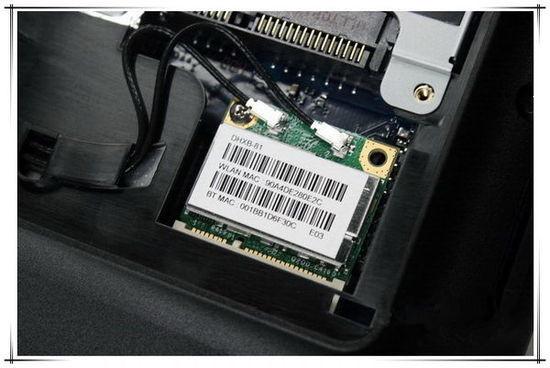
2. Locate the two small antennas, gently twist and pull up on the gold (or yellow) clips found at the end of the wires to detach them from the wireless card.
3. Press the latch clips that secure the wireless card in its slot outward. Remove the wireless card from the compartment.
4. Gently put the new wireless card in the slot. Before putting the cover back onto the empty compartment, tuck the antenna wires so that they do not get stuck underneath the cover. Place the cover and screw back.
Is it useful for you? Hope so…
Related Posts

OSGEAR UW1300 USB WIFI Wireless WLAN Card Drivers for Windows Mac Linux Download
OSGEAR Wireless series driver support - UW1300 Series
Recommended for end-customers. Includes download options for driver-only and...
OSGEAR DW2030BT Desktop PCIe Wireless Bluetooth Card Adapter Driver Software for Windows XP 7 8 10
OSGEAR Desktop Wireless series driver support - DW2030BT
802.11a/b/g/n 300Mbps ,802.11ac 1733Mbps Enhanced 2030Mbps Wireless data ...

The Seven Types of Interface Wireless Cards
The wireless card is a wireless terminal device used for surfing the Internet thr...

Common problem of wireless use
Wireless internet FAQ and troubleshooting ~
If the user inserts did not respond on the card on your laptop, but on other laptop...
A Professional website of wireless include intel atheros broadcom ralink realtek
This may be the world's largest brand the most complete most of the wireless network card professional website.If you ...
New Standard Limiting Speed Intel 7260 wireless card
As a newly released wireless card of the Intel, the Intel 7620 improved a lot in performance compared to th...

Desktop wireless card in our daily life
WIFI is more and more penetrated into our life and work. Now, we needn’t bother for chaotic cables. The desktop wireless card have...
